
Handle partial payments and overpayments
Apply less than an invoice balance, split a payment across invoices, and understand the limits on excess money.
- Who can do this
- Owners, or people with Record payments received and View all payments and View customers
- Where
- Sales, then Payments received
- You'll need
- An approved customer and deposit account; General requires open invoices with balances; Nonprofit can retain an unapplied remainder
On this page
A partial payment pays part of an invoice.
Apply a partial payment
- Open Payments received and select Receive Payment.
- Choose the customer in Select Customer.
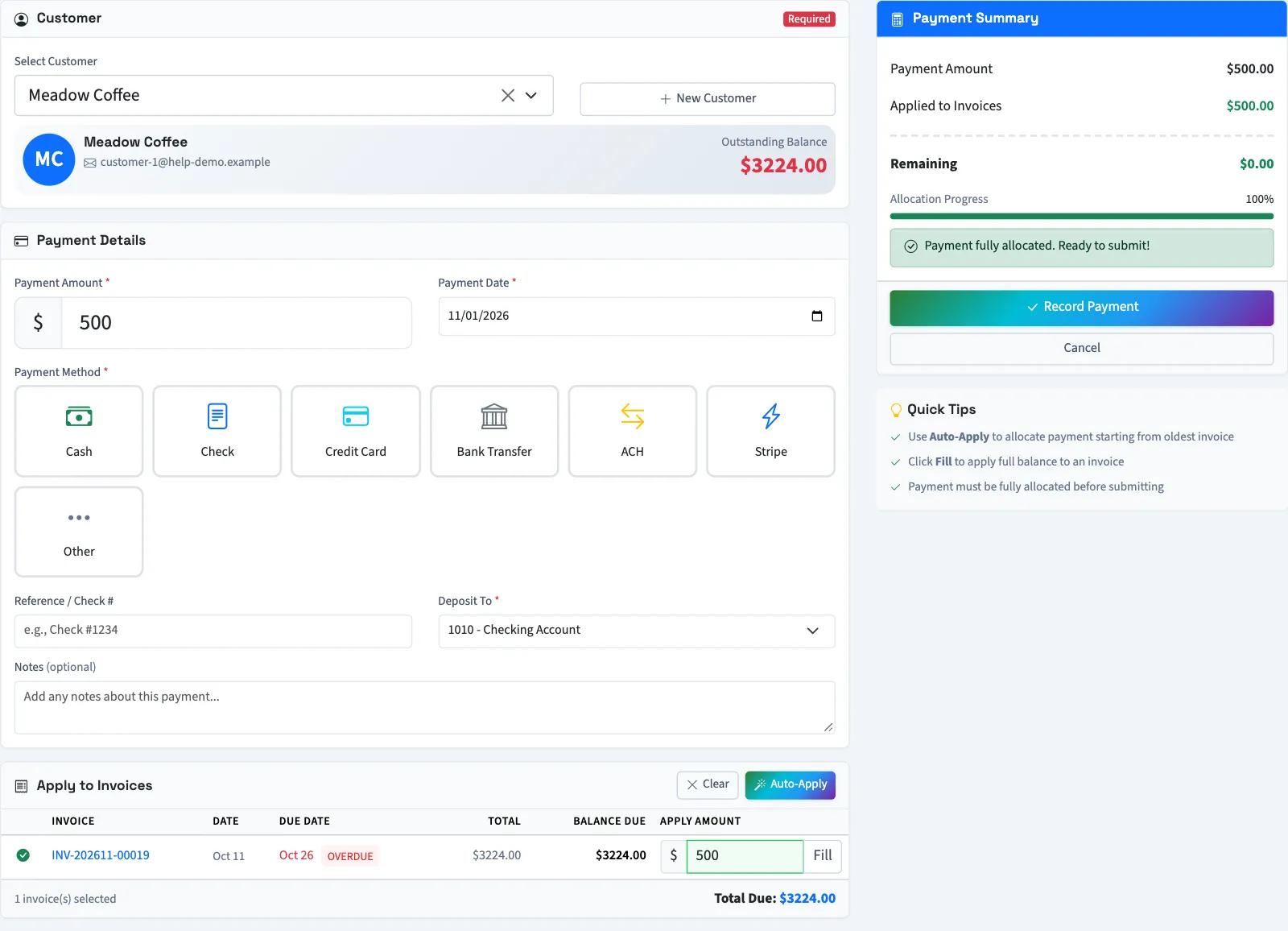
- Enter the amount actually received in Payment Amount.
- Enter the amount against the invoice in Apply Amount.
- Complete the date, payment method and deposit account.
- Select Record Payment.
For example, if Studio & Co. receives $40 against a $100 invoice, enter $40 as both the payment and applied amount. The invoice then has a $60 balance and a partial status.
Split one payment across invoices
Enter a separate Apply Amount for each invoice. Alternatively, select Auto-Apply to start with the earliest due date. It fills each balance until the payment is used up. Check the result before saving.
Handle an amount larger than the open balances
In General, the form requires the whole payment to be applied. You cannot use this form to save excess money as an unapplied customer balance. The form also prevents an invoice allocation above its balance. If the payment exceeds all available balances, contact support about the unsupported excess before recording it.
In Nonprofit, you can record more than you apply, or leave the whole payment unapplied. Review Financial coding before saving: that coding is used for the unapplied portion, while amounts applied to invoices follow those invoices' coding. The payment form does not provide a task for applying an existing unapplied payment later.
What happens next
QixCount recalculates each affected invoice. An invoice with money applied and a remaining balance becomes partial; a fully settled open invoice becomes paid. Recording another payment creates a separate payment record.
To correct a saved payment, read Delete or void a payment. To provide confirmation to the customer, read Print and manage payment receipts.
Good to know
One payment can also cover several open invoices for the same customer. Each applied amount must stay within that invoice's balance.
Who can do this and what you need
Use the access and customer requirements in Record a payment. Owners can use the form; staff need Record payments received, View all payments and View customers for the complete workflow.