
Use the business overview
Check the business identity, membership totals and links into its workspace.
- Who can do this
- People with access to the current business
- Where
- Business overview
On this page
Open the overview
- Select the business name at the top of the sidebar.
- Select Business overview.
- Check the business name before following a link.
Who can do this and what you need
The business overview is the landing page when you enter a business from the business list. It shows business information and links to accounting, settings and people.
Anyone with access to an active, accessible business can open the overview. Buttons leading to settings or team management keep their own restrictions. Those destinations require the owner and Manage business settings, roles & permissions permission, even when a button appears here.
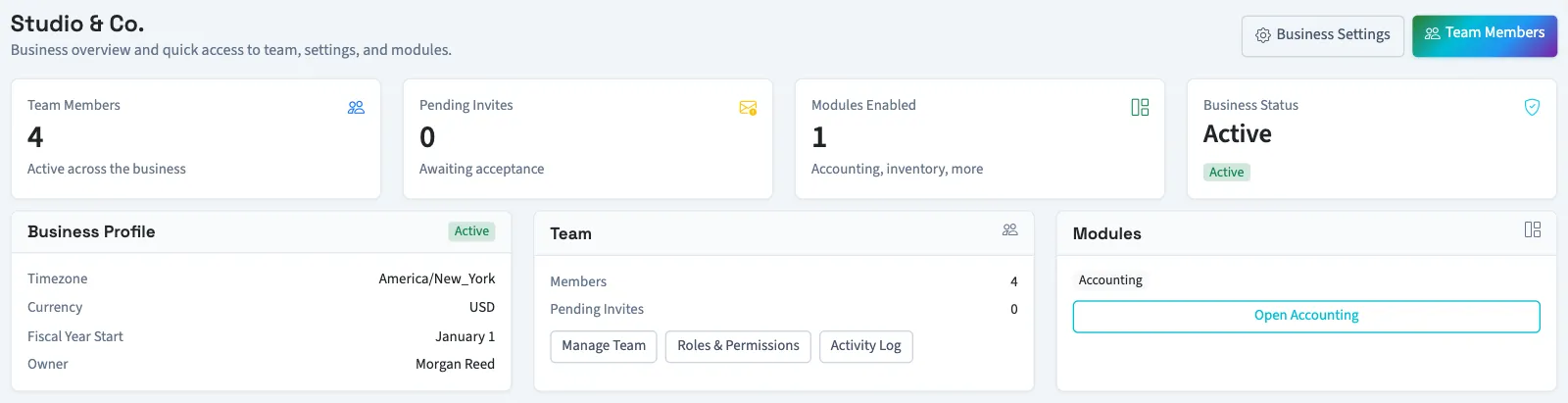
Read the cards
| Card | What it shows |
|---|---|
| Team Members | The number of memberships linked to the business. |
| Pending Invites | Invitations waiting for acceptance. |
| Modules Enabled | The number of enabled work areas recorded for the business. |
| Business Status | The business's current status. |
| Business Profile | Timezone, currency, fiscal year start and owner. |
The Team area repeats the member and invitation counts. Manage Team, Roles & Permissions and Activity Log lead to owner tools. The business overview does not change roles or invite people itself.
Continue into your work
Select “Open Accounting” in Modules to open the General dashboard or Nonprofit Overview. If no work areas are enabled, the page says No modules enabled yet. Contact support if the workspace you expected is missing.
Owners can select Business Settings to review settings or Team Members to manage people. See Settings overview or Invite someone for the next steps.
To leave these books and choose another business, switch businesses.