Use keyboard shortcuts
Navigate search results and send chat messages with the keyboard.
- Who can do this
- People with business access; sending team chat messages needs Post chat messages and conversation access
QixCount provides shortcuts for the workspace search and team chat. The search shortcuts apply when the accounting header search is available. Chat shortcuts require access to team chat.
Search from the workspace
| Key | Action |
|---|---|
| / | Focus and select the header search field when you are not typing in an input, text area, select field or editable content. |
| Down arrow | Select the next result while the search result list is open. |
| Up arrow | Select the previous result while the search result list is open. |
| Enter | Open the selected search result. |
| Esc | Close the open search result list and leave the search field. |
Enter at least two characters to start searching. Use the arrow keys to choose a result before pressing Enter. Read Find your way around for what search can find.
Work in team chat
| Key | Action |
|---|---|
| Ctrl+Shift+C on Windows, or Command+Shift+C on Mac | Toggle the floating team chat window. |
| Enter in the message field | Send the current nonempty message. |
| Shift+Enter in the message field | Add a new line without sending. |
| Esc in the floating chat window | Close its open dialog first, reduce an expanded window next, or close the window. |
Sending still requires Post chat messages permission and an active conversation. An archived conversation is read-only. See Team chat before archiving or deleting a conversation.
Open Qix
When Qix is available in the workspace, Ctrl+Q or Command+Q toggles its window. Enter sends a message from its message field; Shift+Enter adds a new line. Esc reduces an expanded Qix window first, or closes its ordinary window.
Check the on-screen reminder
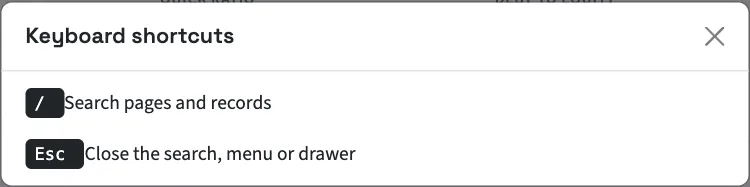
Open Help at the bottom of the sidebar and select Keyboard shortcuts. The reminder lists the search shortcut and Esc. In the collapsed sidebar, Esc also closes an open group flyout and returns focus to its group.