
Talk with your team in chat
Create a conversation, send messages and understand chat permissions and archive actions.
- Who can do this
- Owners, internal team members and assigned firm accountants; viewers cannot create conversations or send messages
- Where
- Team chat
- You'll need
- Active business access; assigned firm accountants need two-step verification; messages need an unarchived conversation
On this page
Team chat keeps conversations inside the current business. You see active conversations you participate in.
Start a conversation
- Open the business-name menu.
- Select Team chat.
- Select New Conversation.
- Enter Subject, up to 120 characters.
- Select Participants.
- Enter First Message, if wanted, up to 4,000 characters.
- Select Create Conversation.
You are added automatically, even if you leave your own checkbox clear. You can create a conversation with only yourself. The page opens the conversation after creation.
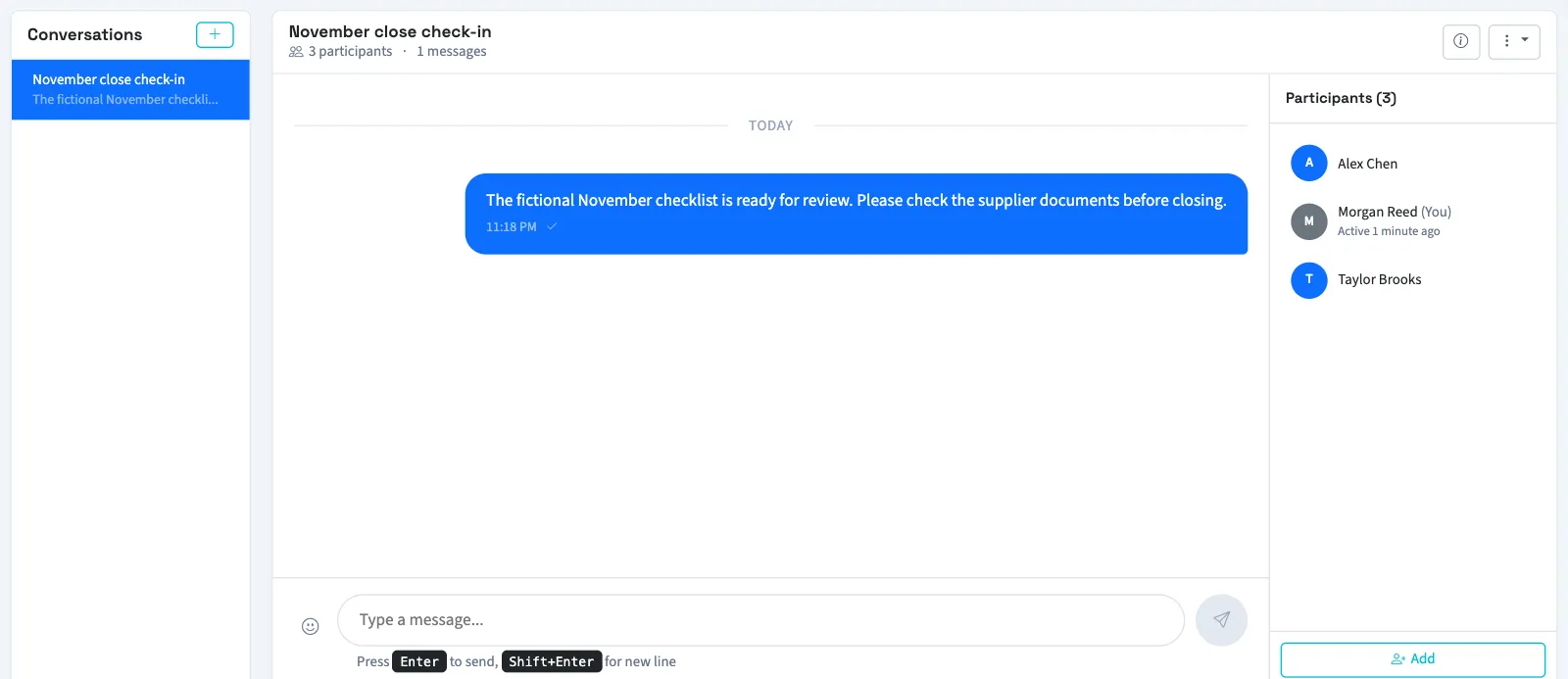
Read and reply
Select a conversation from the list. On the list page, Search conversations... matches the subject or participant names. Enter a message in Type a message..., then select the send icon or press Enter. Shift+Enter starts a new line. Messages allow up to 4,000 characters.
The floating chat window provides the same conversations. Use Ctrl+Shift+C on Windows or Command+Shift+C on Mac to open or close it. Select Expand for a larger window.
To add people, open the conversation's three-dot menu and select Add Participants, choose people, then select Add Selected. The floating window uses its own participant dialog.
Archive or delete
Archive Conversation hides the conversation from active lists for everyone. Its saved link remains readable by participants, but messages cannot be added or deleted and participants cannot be added. There is no restore control in these screens.
With deletion permission, select Delete on one of your own messages and confirm. The React control inserts an emoji into your message draft; it does not attach a reaction to an existing message.
WarningThe owner's Delete Conversation action removes the conversation and its messages. Confirm only when you intend to remove them; the screen has no undo.
Next, review notifications for unread activity.
Good to know
Opening a conversation marks it and its chat notifications as read.
Who can do this and what you need
You need View team chat permission. Creating conversations and adding participants require Create chat conversations; sending messages and archiving require Post chat messages. Deleting your own messages requires Delete chat messages. Owners have these permissions and can delete whole conversations.
Available participants must be active people with business and chat access. Viewers do not appear. Firm accountants must also have two-step verification enabled.