
Review and dismiss notifications
Find unread business notifications and clear the items you have reviewed.
- Who can do this
- Active business users; viewers can read notifications but cannot mark them read
The bell in the workspace header shows unread notifications addressed to you in the current business. Notifications can include team chat messages and other business activity. They are separate from the General dashboard's action list and Nonprofit Overview's Needs you list.
Open the notification list
- Check the business name at the top of the sidebar.
- Select Notifications in the header.
- Review the title, message and time on each item.
- Select an item to follow its action when one is available.
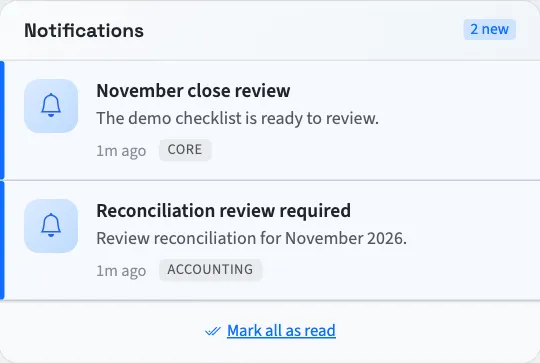
The panel shows the eight most recent unread items. The badge counts all unread items, so the total can be higher than the number shown. The header badge displays 99+ when the count is over 99. No new notifications means there are no unread items returned for you.
Clear reviewed items
Free viewers can read notifications but cannot mark them read. With internal or firm accountant access, select Dismiss on one item to mark it read and remove it from the unread list. Select Mark all as read to clear all of your unread notifications in this business, including older items outside the eight shown.
Following an ordinary notification link does not itself mark that item read. Dismiss it when you have reviewed it. A chat notification opens the floating chat conversation and is marked read; opening the conversation also clears its chat notifications.
What happens next
The unread list refreshes regularly while the page is open. Marking a notification read changes its read state; it does not approve a bill, send a payment or complete the underlying task. Follow the task's own controls to finish that work.
Notifications belong to your active business user. If the list cannot load, check that you entered the intended business and ask the owner to confirm your active access.
For messages from coworkers, continue with Team chat. For items needing accounting work, open the General dashboard or Nonprofit Overview.