
Use the setup checklist
Open setup tasks, understand shared progress and find help for the forms.
- Who can do this
- Owners, or people with Manage business settings, roles & permissions on the dashboard; viewers cannot change the checklist
- Where
- Dashboard
On this page
Follow a task in General
- Open Dashboard.
- Find Get started in 10 minutes.
- Select Start beside a pending task.
- Complete the task on its destination page.
- Return to Dashboard to review the checklist.
Who can do this and what you need
The setup checklist is shared across the business. Its tasks depend on your edition and enabled features. Hiding a checklist keeps your records and saved progress.
You need access to the business. On the General dashboard, the checklist requires settings management access. Each destination keeps its own permissions, so a task may require help from the owner. General and Nonprofit use different task lists; see Your first week or Your first week with Nonprofit.
Free viewers can open destinations they are allowed to view, but cannot complete, skip, hide or restore the shared checklist.
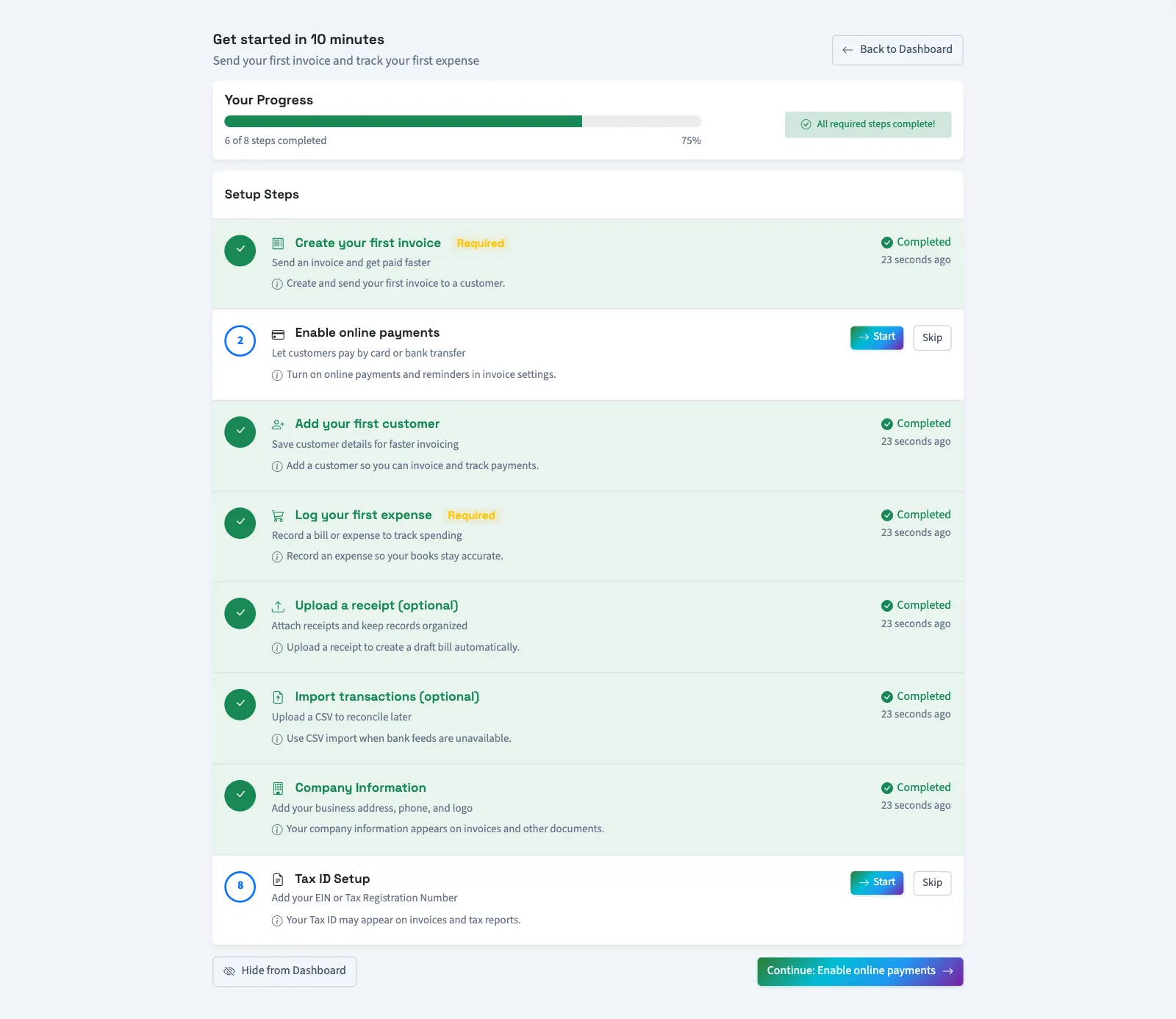
Owners can open Settings and select Setup guide to reach the full setup page. It shows Your Progress and Setup Steps. From that page, Back to Dashboard returns to the General dashboard or Nonprofit Overview.
Follow a task in Nonprofit
- Select Overview.
- Find Finish setup before mapping approval, or select Finish on the unfinished setup row under Needs you afterward.
- Select Open beside a pending task.
- Complete its form.
- Return to Overview.
Use Open to follow tasks; the Nonprofit checklist has no manual completion or hiding controls. Open appears only for tasks your access allows. Mapping approval is still required for posting.
Understand progress
| State | What it means |
|---|---|
| Pending | The task has not been marked complete or skipped. |
| Completed | The completion condition was detected, or someone marked the task complete. |
| Skipped | An optional task was skipped. |
Skip is available only for optional tasks. Complete on the General dashboard, or Complete Now on the full setup page, marks a skipped task complete immediately. It does not open the task or check that its work was done. Open the relevant page directly when you want to do that work.
For example, an existing invoice completes the first-invoice task even if it is still a draft. Progress is a guide, not a check that your books are finished.
Hide the checklist
In General, select the X icon on the dashboard, which is labeled Dismiss when you hover over it, or Hide from Dashboard on the full setup page. Completing required tasks also hides the General checklist and the unfinished setup reminder. Nonprofit still shows Finish setup whenever mappings need approval. On a dismissed full setup page, Show on Dashboard requests that it be shown again; completed required tasks can cause it to hide again.
Next, find your way around.