
Edit or delete a draft journal
Correct a draft before posting, or remove a draft you no longer need.
- Who can do this
- Owners, or people with View journal entries; editing needs Edit draft entries; deleting needs Delete journal entries
- Where
- Books, then Journal entries
- You'll need
- Advanced accounting turned on in Features; an unposted draft
You can edit or delete a journal while it is a draft. Posted entries, including entries marked reversed, cannot be edited or deleted through these actions.
Edit a draft
- Open Books, then Journal entries.
- Select the draft's reference or Draft link.
- Select Edit Entry.
- Change the entry details or lines you need.
- Select Add Line if you need another account line.
- Review Totals and any Difference.
- Select Save Changes.
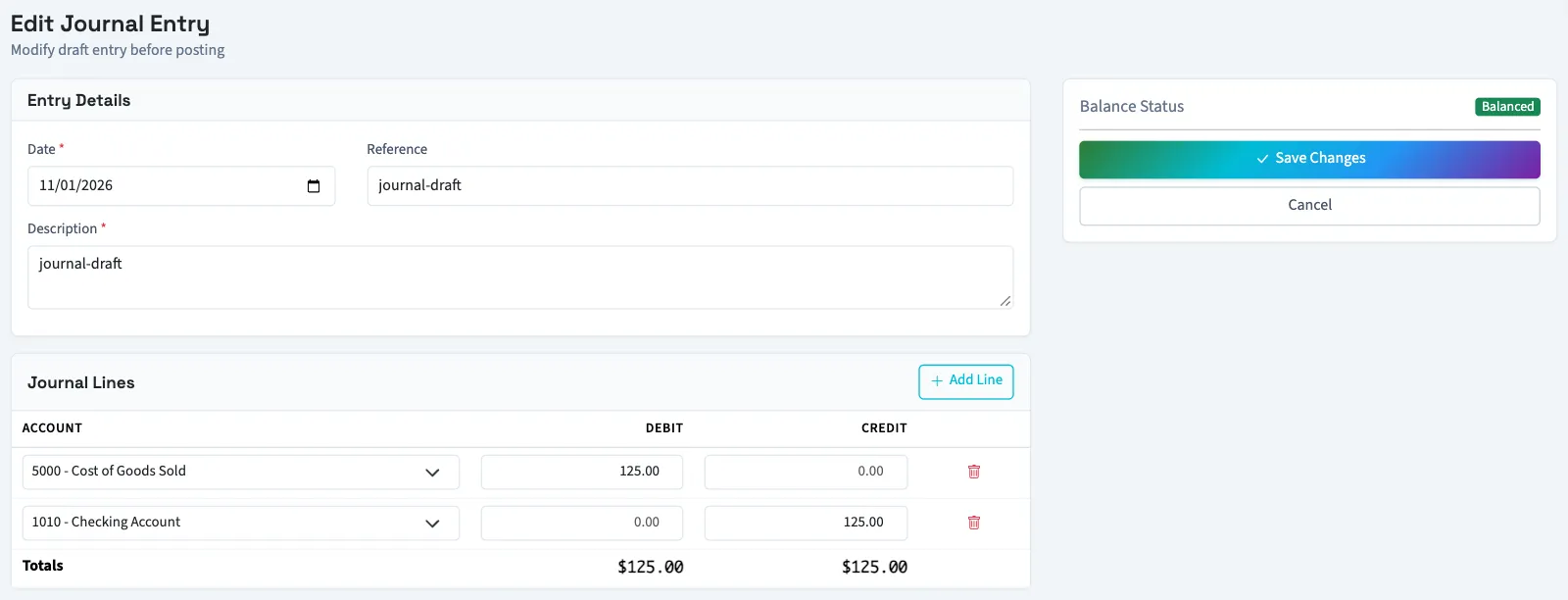
The same limits apply as when creating an entry: a reference allows 100 characters, a description allows 1,000, debits must equal credits, and a line cannot have positive amounts in both columns. The account selector lists active accounts. If a draft's account was deactivated, select an active account or have the original reactivated before saving.
For Nonprofit, review the financial coding on each line. Save changes before previewing offsets; previews use the saved draft.
If saving fails, check and re-enter every intended account, amount, and coding selection before retrying. Reopen the saved draft to verify the result before posting.
Delete a draft
- Open the draft's detail page.
- Select Delete Draft.
- Confirm the deletion.
The journal list also offers Delete in a draft row's action menu.
What happens next
Saving returns to the draft detail page without posting. Deleting removes the draft and its lines and returns to the journal list; there is no restore action on the screen.
Next, post the reviewed draft or reverse a posted entry.
Who can do this and what you need
Owners can do both tasks. Other active business users need Edit draft entries for changes or Delete journal entries for deletion, plus View journal entries to open the entry. Assigned accountants from an approved firm can edit; their standard access does not include deletion.
If Journal entries isn't in the sidebar, someone with settings access can turn on Advanced accounting in Features.