
Edit, deactivate, or delete an account
Update account details, stop using an account, or remove an unused account.
- Who can do this
- Owners; View chart of accounts to open; Edit accounts to edit or deactivate; Deactivate accounts to delete unused accounts
- Where
- Books, then Chart of accounts
- You'll need
- Advanced accounting turned on in Features
On this page
You can change account details or make an account inactive while retaining its history. Deleting is available only for accounts without journal lines or sub-accounts.
Edit or deactivate an account
- Open Books, then Chart of accounts.
- Select the account name.
- Select Edit.
- Change the details you need. Account Code must remain unique and no longer than 20 characters. Account Name allows 255 characters, and Description allows 500.
- To stop using the account in new manual journals, clear Active account.
- Select Save Changes.
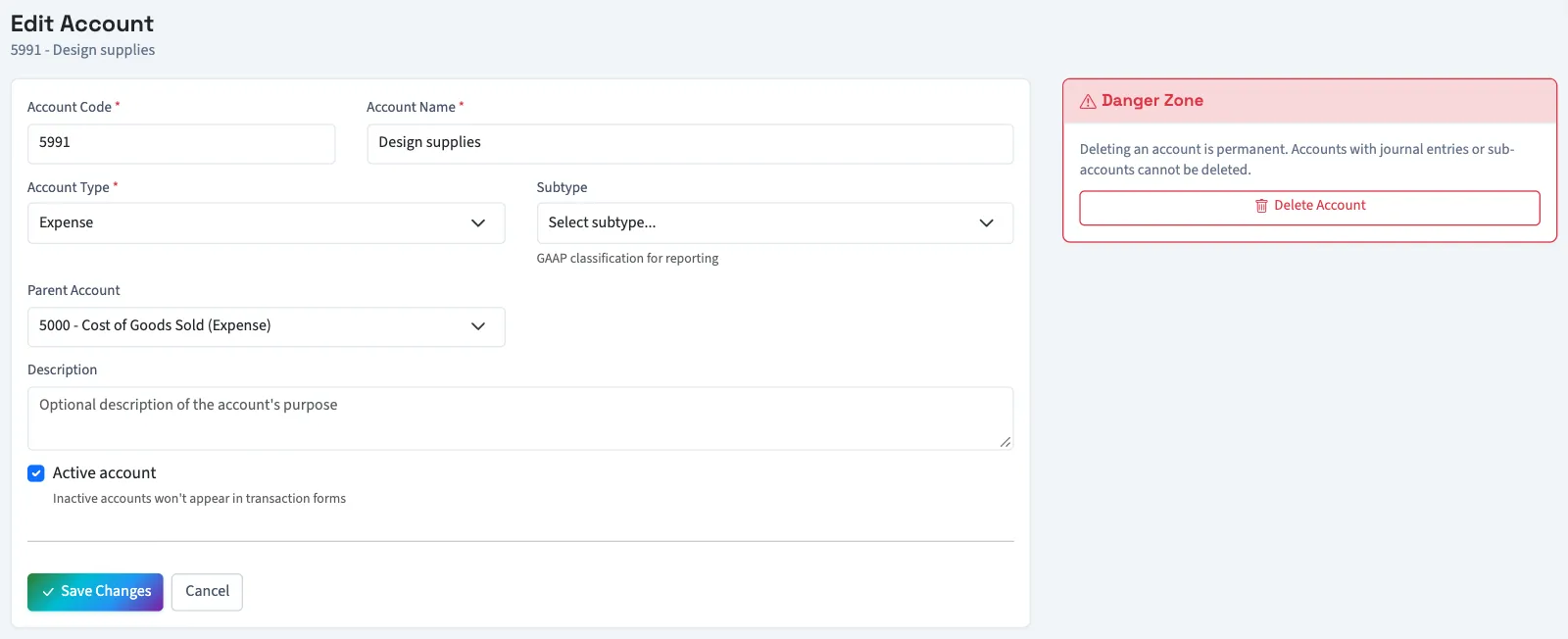
The edit form calls the detail type Subtype. Its choices depend on Account Type. You cannot select the account itself or one of its descendants as Parent Account.
QixCount blocks changing the type of an account with posted Nonprofit history. If a type or subtype needs correction, contact support to review its balance settings before changing it; the edit form has no normal-balance control.
Delete an unused account
WarningThere is no restore action on this screen. Accounts with any journal lines, including draft lines, cannot be deleted. Accounts with sub-accounts cannot be deleted either.
- Open the account's Edit Account page.
- Select Delete Account in Danger Zone.
- Confirm the deletion.
What happens next
Editing returns you to the chart. Inactive accounts remain visible there, and their posted history remains available. In General, their balances stay on reports; deactivating an account does not remove its balance from the books. Reactivate one by selecting Active account and saving again.
Next, review account activity or understand contra accounts.
Who can do this and what you need
Owners can make these changes. Other active business users need View chart of accounts to follow the list and detail steps and Edit accounts to open the edit page or deactivate. Deletion also needs the separate permission currently labeled Deactivate accounts. Assigned accountants from an approved firm can edit accounts; their standard access does not include deletion.
If Chart of accounts isn't in the sidebar, someone with settings access can turn on Advanced accounting in Features.