
Import unpaid invoices and bills
Bring across each General document's unpaid amount after importing accounts and contacts.
- Who can do this
- Owners; invoice imports need Create invoices and Send invoices; bill imports need Create bills and Approve bills
- Where
- Books, then Import data
- You'll need
- General edition with accounts, customers and vendors imported first
On this page
Import each file
- Open Books, then Import data.
- Select Open invoices or Open bills.
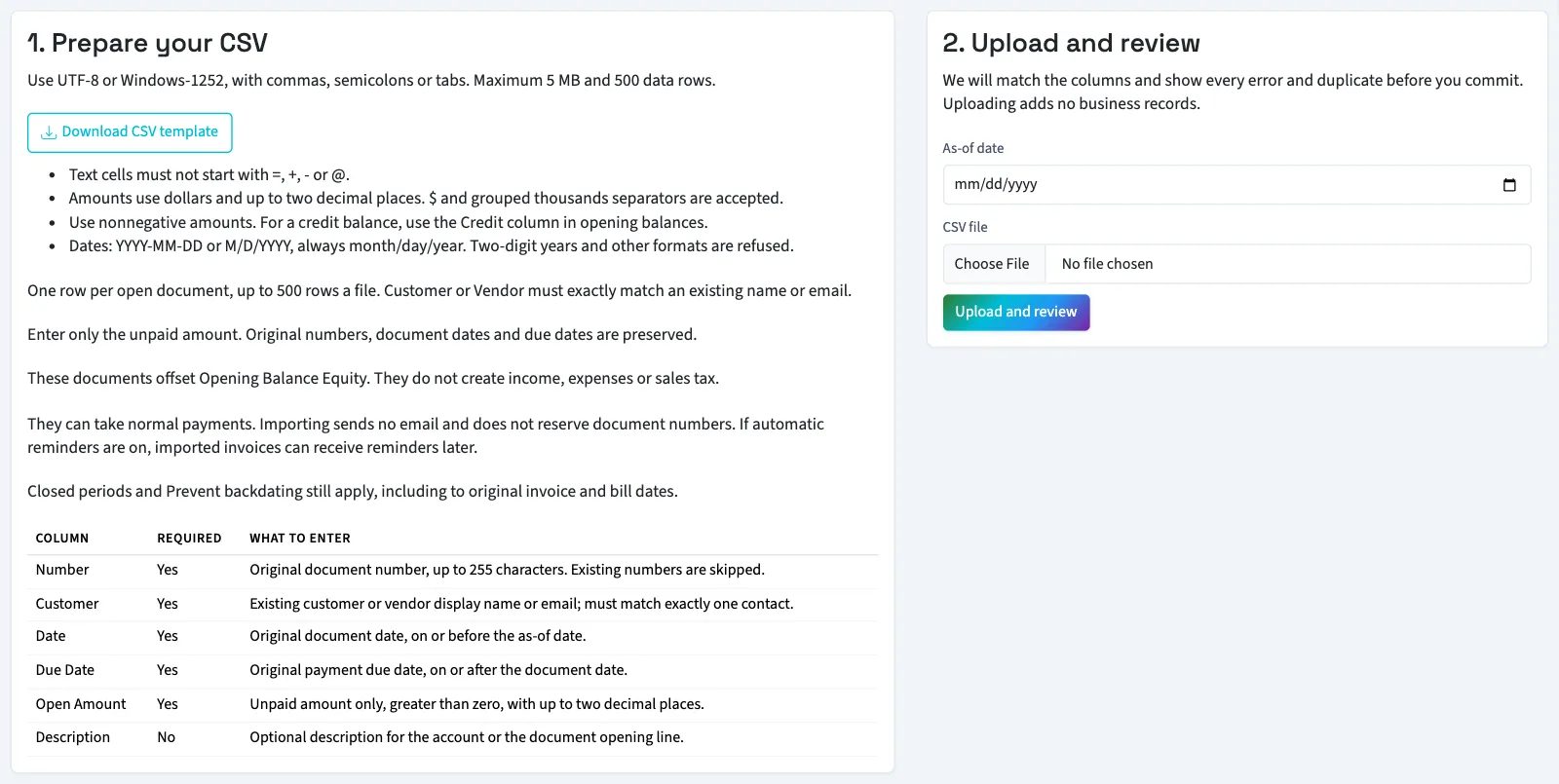
- Download and fill that type's template using only the amount still owed on each document as of the transition date.
- Enter As-of date.
- Choose CSV file.
- Select Upload and review.
- Review mapping and every row.
- Select Commit import after fixing all errors.
Any bad row blocks the whole file. A repeated invoice number for the same customer is skipped, including a deleted invoice’s number. The same number twice in one file with different amounts is an error. A number that belongs to a voided invoice or bill is also an error, so use a different number. That number on another customer is an error and blocks the file.
Bill duplicates are checked per vendor, including deleted bills. Two vendors may use the same vendor bill number. QixCount retains that reference and gives the new bill a different internal number if needed.
What happens next
WarningCommitting posts the documents immediately. Invoices are marked sent and bills pending. No customer email is sent. These opening documents offset Opening Balance Equity, a temporary equity account; they do not add income, expenses or sales tax.
Original document dates and vendor invoice references are retained. Importing does not advance your document number sequence. Review document numbering when choosing prefixes for later documents.
Open bills post directly only when no bill workflow covers them. Approval-covered bills must be entered by hand. Imported vendors still follow any vendor approval workflow and must be approved before their bills can be imported.
Imported invoices remain eligible for later payment reminders when automatic reminders are on; importing itself sends no customer email. Check reminder settings and current limits before bringing across overdue invoices.
Documents can take customer payments or bill payments. Next, enter remaining opening balances, leaving receivables and payables out of that file.
Good to know
Import one row for each unpaid invoice or bill as of the transition date. Use the amount still owed, not the original full amount. This workflow is available in General only.
Prepare the columns
| Column | Required | What to enter |
|---|---|---|
| Number | Yes | Original invoice number, up to 255 characters, or bill number, up to 50. |
| Customer or Vendor | Yes | Existing customer's or vendor's display name or email. |
| Date | Yes | Original document date, on or before the as-of date. |
| Due Date | Yes | Due date, on or after the document date. |
| Open Amount | Yes | Unpaid amount in your business currency, greater than zero, up to two decimal places. |
| Description | No | Up to 255 characters for invoices or 1,000 for bills. |
The invoice template uses Customer; the bill template uses Vendor. Each file allows at most 500 nonblank data rows; split larger files. Slash dates use US month/day/year. YYYY-MM-DD is also accepted. Closed periods and the backdating setting apply to each original document date.
Open invoices use QixCount's receivable account code 1100; open bills use payable account code 2000. These imports do not offer a different control-account selection. Review the account match with your accountant if your old chart uses other codes.
Who can do this and what you need
Import accounts, customers and vendors first. Owners can import. Other active users need both Create invoices and Send invoices for invoices, or both Create bills and Approve bills for bills. The contact must be active and its display name or email must match exactly one record of the correct type. Bills require an approved vendor. If a bill approval workflow covers the amount, open Purchases, then Bills, and enter the bill by hand so it can go through approval.