
Import a chart of accounts
Add account codes, names and optional parent relationships without changing existing accounts.
- Who can do this
- Owners, or people with Create accounts
- Where
- Books, then Import data
- You'll need
- A CSV file up to 5 MB with at most 5,000 data rows containing account codes, names and supported types
On this page
Import the chart before contacts and opening records. This adds accounts, not balances. General and Nonprofit support account imports. Owners can import; other active users need Create accounts.
Import and review
- Open Books, then Import data.
- Select Accounts.
- Select Download CSV template.
- Fill and save the CSV.
- Choose CSV file.
- Select Upload and review.
- Check every type, code, parent and row result.
- Select Commit import when there are no errors.
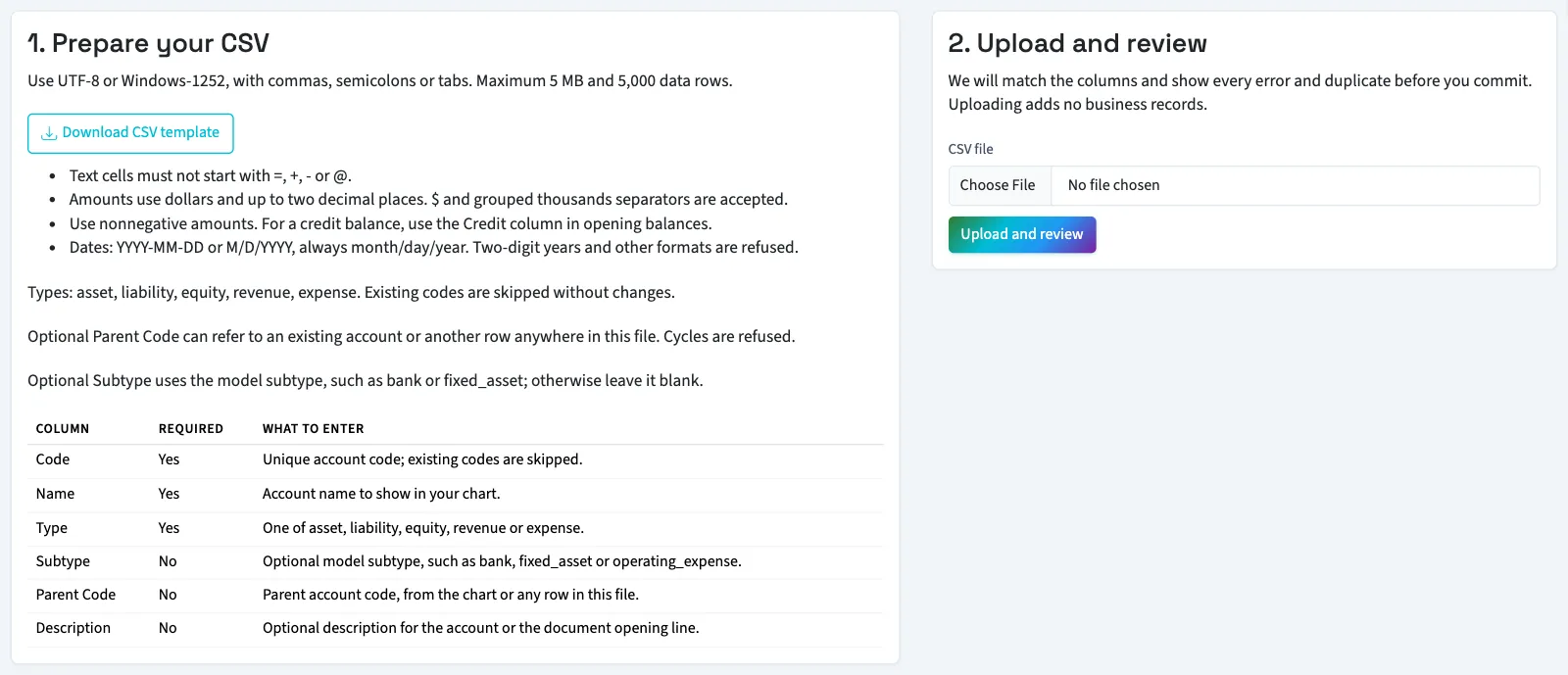
The review rejects a missing parent or a chain that loops back to itself. Parents can occur anywhere in the file. An archived account holding a code causes an error; contact support if you cannot restore it through your available screens.
What happens next
New accounts are active and are added without balances. Existing account codes and repeated codes are skipped without changing the existing account. Check the chart already in QixCount before choosing codes so an unintended skip does not leave the wrong account in use.
The importer checks that a parent exists, doesn't create a loop and has the same account type as the account under it. Have your accountant review the resulting hierarchy. To add one account or inspect its normal balance, read add an account.
Next, import customers and vendors, then follow the General opening-record sequence.
Good to know
Reviewing the chart afterward also needs View chart of accounts.
Prepare account columns
| Column | Required | What to enter |
|---|---|---|
| Code | Yes | Unique account code matching your later opening file, up to 20 characters. |
| Name | Yes | Account name. |
| Type | Yes | asset, liability, equity, revenue or expense. |
| Subtype | No | A supported subtype code, such as bank, or leave blank. |
| Parent Code | No | Existing account code or a code elsewhere in this file. |
| Description | No | Description, up to 500 characters. |
Other mapped fields allow 255 characters in this importer. These import limits differ from the individual account form. Exported type and detail names from another product may need conversion. Give every bank or cash account the subtype bank or cash, because Cash Flow can miss one without it. When unsure about another subtype, leave it blank rather than guessing a display label; a value that doesn't match shows the codes you can use. An asset or liability with no subtype counts as current on the balance sheet, and the review warns you about this. Add a subtype for long-term items such as vehicles or loans.