
Prepare and review an import file
Use a CSV template, check column matches and fix every error before committing a file.
- Who can do this
- Owners, or people with the permissions for the chosen import type
- Where
- Books, then Import data
- You'll need
- A CSV file up to 5 MB within the chosen type’s row limit; an as-of date for General ledger imports
On this page
Each import has a template and a review page. You need the permissions for that import type. Reviewing a file does not add business records.
Prepare the file
- Open Books, then Import data.
- Select the type of records you want to import.
- Select Download CSV template.
- Fill the template with one record per row.
- Save it as CSV.
Files accept commas, semicolons or tabs, with UTF-8 or Windows-1252 text. The limits are 5 MB and 100 columns. Lists allow 5,000 nonblank data rows, opening balances 2,000, and open invoice and bill files 500. Split a larger file and import each part. Include a header row and at least one data row. Every row must contain the same number of cells as the header. Remove report titles, subtotals and footer rows. If an unclosed quotation mark makes later rows read as one cell, the review blocks the file. Two columns with the same name are refused for amounts; for other fields the review warns you that only one is imported.
Text beginning with =, +, - or @ can fail spreadsheet formula protection. Numeric phone-like values are excepted, but headers are not. Null bytes and most control characters are refused. Most mapped text allows 255 characters; notes and descriptions generally allow 1,000, with stricter document limits in the open-document guide.
Amounts must be nonnegative dollars with at most two decimal places. Dollar signs and correctly grouped thousands are accepted. An amount with a thousands comma must be inside quotation marks, as spreadsheets export it. A row that looks like an amount split by an unquoted comma is refused. Use the separate debit and credit columns for balances. Slash dates always mean US month/day/year; YYYY-MM-DD is also accepted.
Download a blank file from import file templates.
Upload and check
- Enter As-of date if this is a General ledger import.
- Choose CSV file.
- Select Upload and review.
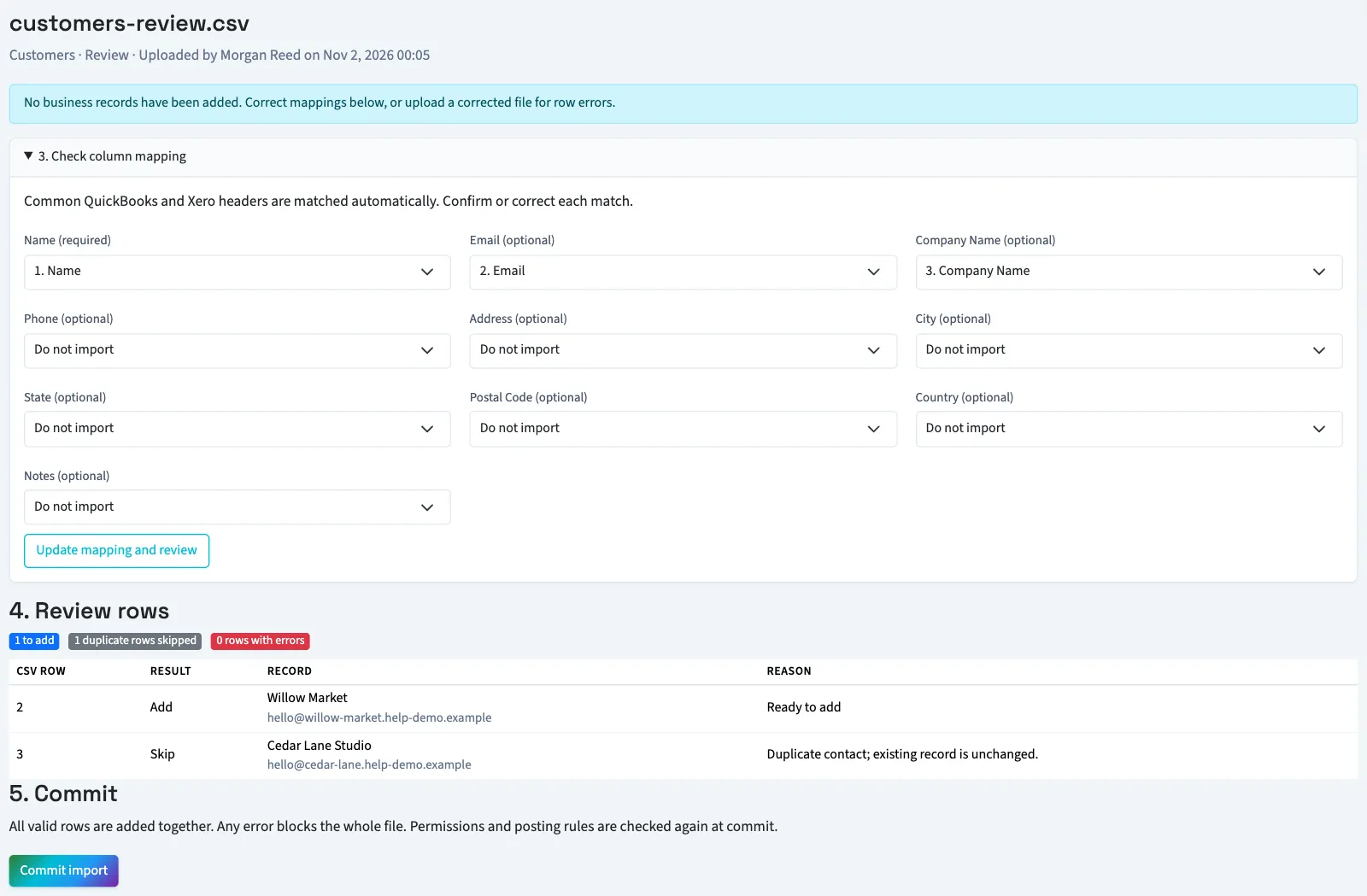
- Expand 3. Check column mapping.
- Confirm every required destination matches the intended source column.
- Choose Do not import for unused optional destinations.
- Select Update mapping and review after changing matches.
- Read 4. Review rows, including every error and skipped duplicate.
A source column can map to only one destination. Common export headers can match automatically; always inspect the matches. Review pages show 100 rows at a time, with Next rows for longer files.
Commit the file
Select Commit import only after reviewing the result. Any row or header error blocks the whole file. Correct row contents in your CSV and upload a new file; the review page edits mapping only.
All additions succeed together or roll back together. Duplicate rows are skipped without updating existing records. Permissions and posting rules are checked again at commit. A committed import cannot run again. Only opening balances have Undo opening balances, which reverses their journal on the original as-of date. Other types use their normal record correction actions.
After commit, the uploaded raw rows are cleared; the mapped review results are cleared once the upload is over 30 days old, and the counts stay after that. Unfinished review or failed uploads older than 30 days have their raw rows and row results cleared and become expired. A business keeps its 20 newest unfinished uploads, so older ones can expire sooner. If the page was opened before someone changed the file's mapping or the results changed, Commit import stops so you can review again. Keep your original CSV; upload it again to continue after expiry.