
Plan your move and choose a start date
Prepare separate files and bring records across in an order that keeps opening amounts traceable.
- Who can do this
- Owners, or people with the permissions for each import type
- You'll need
- A transition date and the old system’s balances and unpaid documents for that date
On this page
Moving records uses separate CSV files.
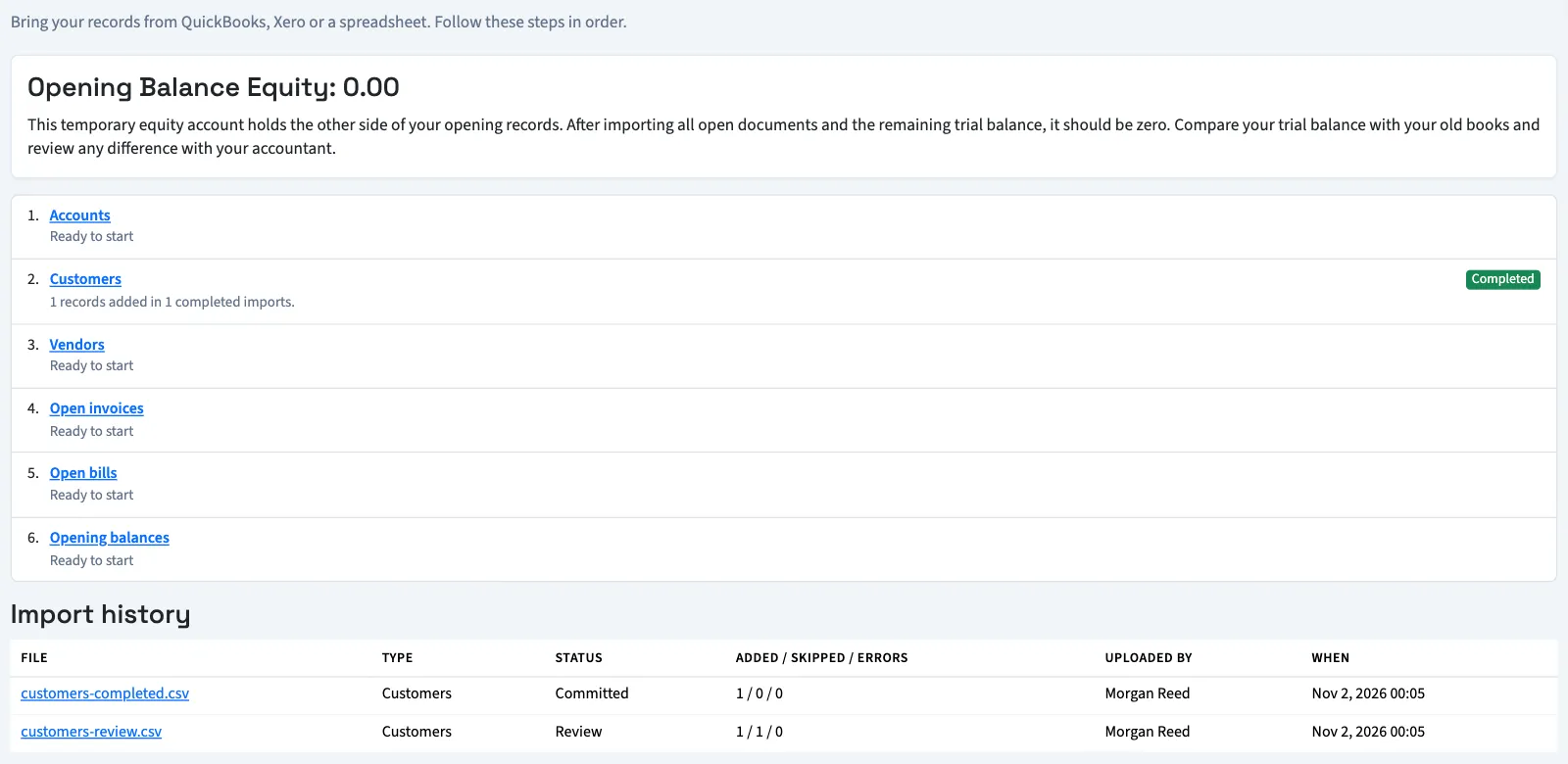
Prepare and import in order
- Save exports and reports from your old system for the transition date.
- Import the chart of accounts, checking codes already present in QixCount.
- Import customers.
- Import vendors.
- In General, import unpaid invoices and bills.
- In General, import the remaining opening balances.
- Compare the trial balance with the old system before entering later activity.
Open Books, then Import data to begin. Follow the sequence above even though the screen lists customers and vendors before accounts. Types you lack permission to import do not appear.
Understand the transition date
General ledger imports require As-of date. Opening balances post on that date. Open invoices and bills retain their original dates, which must be on or before it. Due dates must be on or after their document date. Closed periods and Prevent backdating can block these original dates as well as the opening date.
Dates written with slashes use US month/day/year; 11/1/2026 means November 1. YYYY-MM-DD is also accepted. Two-digit years are refused.
What happens next
Uploading saves a review without adding contacts, accounts or posted documents. You check columns and rows before committing each file. Read what can and cannot move, then prepare a CSV.
| Import status | Meaning |
|---|---|
| Review | Saved for checking; no business records added. Errors can still block commit. |
| Failed | Commit failed and its business-record additions rolled back. Review the error before retrying. |
| Committed | Additions completed together; duplicates were skipped. This import cannot run again. |
| Undone | The opening-balance journal was reversed. A corrected file can be imported. |
| Expired | An unfinished upload is older than 30 days, or a business has more than 20 unfinished uploads and this was one of the oldest. Its rows were cleared. Upload again to continue. |
Good to know
It does not copy your old workspace or its complete transaction history. Agree on a transition date with the person responsible for your books, and prepare the old system's balances and unpaid documents for that same date.
Who can do this and what you need
Owners can import. Other active members need the permissions for each import: Create customers, Create vendors or Create accounts for lists; Create invoices and Send invoices for open invoices; Create bills and Approve bills for open bills; Create journal entries and Post journal entries for opening balances. Undoing opening balances also needs Reverse posted entries, and a file that sets a bank's opening balance needs Edit bank transactions. You can see your own uploads while you have that type's import permissions. To see someone else's, you also need the matching view permission, such as View customers. A free viewer cannot import. Accounting must be enabled and you must have access to the business.
Nonprofit can import customers, vendors and accounts only. Contact support to plan its opening ledger; do not use General opening files for Nonprofit.